Skip to content
Archive of posts tagged ObjectARX

Registering an ARX/BRX module as a COM server

If you’re developing ARX modules that need to be registered as a COM server, you’re faced with some decisions about how to register them. In the old days before anyone cared about user permissions, registration could be safely accomplished at runtime, even via AutoLISP. Unfortunately runtime COM server registration just doesn’t work reliably any more under limited user accounts, not to mention registry redirection on 64-bit platforms. There is only one reliable way to register COM servers, and that’s doing it at install time under elevated privileges.

A normal Windows application might accomplish install-time registration by calling RegSvr32 after the files are copied to the destination folder, but this doesn’t work with ObjectARX or BRX modules. The reason it doesn’t work is because ARX modules cannot be loaded outside the AutoCAD or Bricscad process. RegSvr32 will fail with errors like “The module <filename> failed to load” or the even less helpful “The specified module could not be found.” There are some kludgy ways to get RegSvr32 to work anyway, but the simplest and most reliable way to solve this problem is to forget RegSvr32 and just add the needed registry values manually into your installer script. It’s not difficult, though it might be time consuming initially if your server implements a lot of COM objects.

At a minimum, a COM server must register at least one COM class under HKCR\CLSID. If the COM server needs to support OLE Automation (e.g. VBA, AutoLISP) it must register a type library in HKCR\TypeLib. In most cases, this is all that is needed, however you may also need to register a “ProgID” in HKCR if a script or in-process module needs to be able to connect to the server via human-readable ProgID.

Most installation script software can import Windows registry script (.reg) files, so it’s often helpful (and more maintainable) to create a registry script file manually, then simply import the .reg file into the installation script. If you use Visual Studio deployment projects, this is the only way to batch import registry values into the installation script. I’ve provided a minimal template for a registry script that registers a single COM object and ProgID. The template uses special characters as placeholders for the actual values: $$ is the human readable ProgID name, ## is the COM object’s CLSID, ** is the filename of your ARX module, and %% is the type library GUID. The type library and object class version numbers should match your actual version numbers as well, and of course [TARGETDIR] is the installation target directory that will be resolved at install time.

Windows Registry Editor Version 5.00

[HKEY_CLASSES_ROOT\$$.1]
@=”$$ Class”

[HKEY_CLASSES_ROOT\$$.1\CLSID]
@=”{##}”

[HKEY_CLASSES_ROOT\CLSID\{##}]
@=”$$ Class”

[HKEY_CLASSES_ROOT\CLSID\{##}\InprocServer32]
@=”[TARGETDIR]**.arx”
“ThreadingModel”=”Apartment”

[HKEY_CLASSES_ROOT\CLSID\{##}\ProgID]
@=”$$.1″

[HKEY_CLASSES_ROOT\CLSID\{##}\Programmable]

[HKEY_CLASSES_ROOT\CLSID\{##}\TypeLib]
@=”{%%}”

[HKEY_CLASSES_ROOT\CLSID\{##}\VersionIndependentProgID]
@=”$$”

[HKEY_CLASSES_ROOT\TypeLib\{%%}]

[HKEY_CLASSES_ROOT\TypeLib\{%%}\1.0]
@=”$$ 1.0 Type Library”

[HKEY_CLASSES_ROOT\TypeLib\{%%}\1.0\0]

[HKEY_CLASSES_ROOT\TypeLib\{%%}\1.0\0\win32]
@=”[TARGETDIR]**.arx”

[HKEY_CLASSES_ROOT\TypeLib\{%%}\1.0\FLAGS]
@=”0″

[HKEY_CLASSES_ROOT\TypeLib\{%%}\1.0\HELPDIR]
@=”[TARGETDIR]“

It’s really not that complicated for a single module. The work can be tedious to create all the values for multiple modules in scenarios where you support multiple AutoCAD and/or Bricscad versions or platforms, but these values typically don’t change over the life of the project, so it only needs to be done once. Once you have created the registry values manually, disable all other forms of COM server registration such as wizard-generated runtime registration or automatic “self-registration” at install time. A bonus side effect of the manual registration approach is that a normal uninstall reliably removes all traces of the COM server registration.

ObjectARX Wizard for Visual Studio 2010

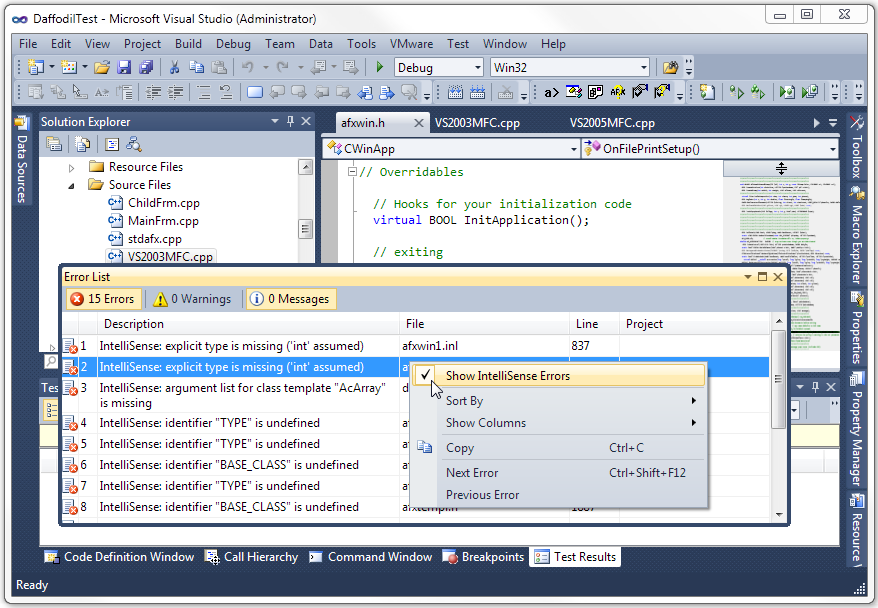
If you’re an ObjectARX programmer, you may still be using Visual Studio 2008 because you’ve been told that you must. It’s true that you need Visual Studio 2008 installed to compile native ObjectARX code, but with Daffodil you can do all your work in the Visual Studio 2010 IDE.

Until now, the one thing that didn’t work in VS 2010 was the ObjectARX Wizard. I’m happy to report that the latest wizard seems to works fine in both VS 2008 and VS 2010. Thanks to Alexander Rivilis for revealing the secret URL:
http://images.autodesk.com/adsk/files/objectarx_2012_wizards.zip

Simplifying the problem: plain vanilla configuration

One of the stages in simplifying an AutoCAD software problem is to rule out (or in) third party add-ons as the cause. To do that, you’ll need a “plain vanilla” test bed configuration that consists of only the out-of-the-box components with no add-ons loaded.

The best way to test in a plain vanilla AutoCAD configuration is to install it on a virtual machine. I use VMWare Workstation for this purpose (Microsoft’s Windows Virtual PC is another popular choice). Virtual machines are completely separate from the host system, so they provide an ideal testbed for isolating software problems. Unfortunately, virtual machines take time and resources to build and manage, so they won’t work for everyone.

For most common cases, it’s sufficient to start AutoCAD with a “vanilla” profile (ideally using the /p <profile_name> target argument in a shortcut) that loads only the standard AutoCAD menu and no third party add-ons, but this can be a bit tricky. The problem is that some third party add-ons are determined to load, and it’s difficult to stop them.

Lisp add-ons can be thwarted by ensuring that your “vanilla” profile uses a clean path (i.e. a folder structure containing only unmodified out-of-the-box files) for all support files. In addition, you must ensure that only the standard unmodified menu files are loaded. Finally, you can set the DEMANDLOAD system variable to zero to disable all object enablers from loading. Note that AutoCAD must be closed and restarted after any changes to see the effect.

Finally, here’s one last tip: you can enter (arx) at the AutoCAD command prompt to see a list of loaded ARX modules. Some ARX modules may automatically load at startup; those can be disabled by tweaking the registry, but I don’t recommend that unless you really know what you’re doing.

In the end, the goal is to determine whether the problem can be reproduced on a “plain vanilla” configuration. If the problem goes away, you can start adding things back one at a time to see when the problem resurfaces. If the problem still occurs on a clean configuration, you can focus attention on other possible causes.

Simplifying the problem: divide and conquer

When a customer reports a drawing-specific issue, the next stage in simplifying the problem is to eliminate all drawing content that has no bearing on the problem. Unless the drawing object that causes the problem is obvious and can be immediately ascertained, I use the divide-and-conquer method to zero in on the cause.

To divide and conquer an AutoCAD drawing, I start by getting a quick feel for what is in the drawing and how it is structured (I use Periscope for this; in fact I originally wrote Periscope for this purpose). The general approach I use is to eliminate roughly one half of the drawing at a time by erasing an arbitrary half, then checking to see whether the problem still exists in the remaining half. Doing this reliably requires some care.

If the drawing has layouts, I start by erasing all layouts except model space. I then save the new file with a new filename, close AutoCAD, restart, open the last file, and test to see whether the problem still exists. If the problem went away, I go back to the original file and start over, erasing everything in model space, then repeat the saveas/close/reopen sequence. Once I pin the problem down to a specific layout (or layouts), I start working on individual drawing entities.

A typical iteration consists of erasing roughly half the drawing entities, then checking whether the problem persists. If the problem goes away, back up and erase the other half, otherwise continue. Entities can be erased either by selection or using QSELECT. If the drawing consists of entities nested inside blocks, I first try erasing the block references; if the problem goes away, I back up and use BEDIT to erase part of the block content.

While going through these iterations, I sprinkle in a periodic purge (using SuperPurge, of course) to remove hidden and invisible objects that become unreferenced as visible entities are erased. I continue this process until I have a drawing file cleaned of everything except the bare minimum needed to reproduce the problem. Often, but not always, that means a drawing file with a single visible entity in it.

The key to success is being methodical and saving with incremented filenames so that it’s easy to back up a step and start over when the problem disappears. Closing and restarting AutoCAD between each iteration helps ensure that the test is not influenced by erased objects remaining in memory. With experience and a bit of skill in correctly guessing where to look, I’ve learned that almost all drawing-specific problems can be narrowed down to the bare minimum in 5 to 10 iterations.

The art of simplifying the problem

One of the most important skills in resolving technical problems is not problem solving, but problem definition. Stripping a problem down to its essence often makes the solution obvious. I think this is generally true, but especially true in my experience with software tech support and tracking down software bugs.

The first stage in problem simplification is to document a set of steps that consistently reproduces the problem. These steps must be detailed enough so that someone else can use them to reproduce the problem, including a description of exactly what the problem is. Often this is the most difficult step, either because the problem doesn’t happen consistently, or because the problem description lacks detail.

The second stage is to try eliminating unnecessary steps with the goal of determining the bare minimum steps needed to reproduce the problem. If the problem is drawing-specific, this stage includes stripping everything out of the drawing except the bare minimum needed. This is often very time consuming, but almost always a worthwhile investment because it can eliminate a lot of potential dead ends in tracking down the ultimate cause. Often, this stage requires some trial and error.

The third stage is determining the exact cause and source of the problem. In my experience, even problems that at first appear very complicated can almost always be boiled down to just a few steps with a minimal amount of data.

Finally, in stage four the problem has to be solved, of course!

In future posts, I’ll share some tips and techniques that I use to simplify software problems.